Rad Tennis Court · Coach panel
Managing companies — step by step
From confirming the time slot at the club to checking employees in for sessions.
Switch to Business mode
By default the panel shows individual players. Companies have their own tab.
Business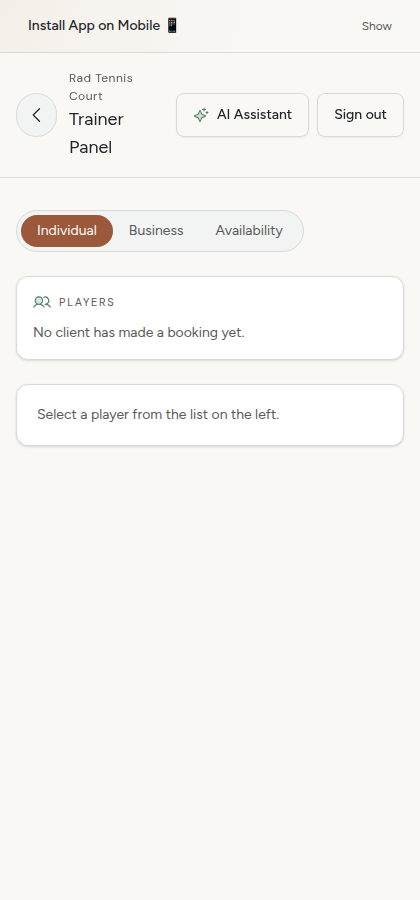
Choose a company
The list shows every company that has a contract with you — click to see the details.
ABC Sp. z o.o.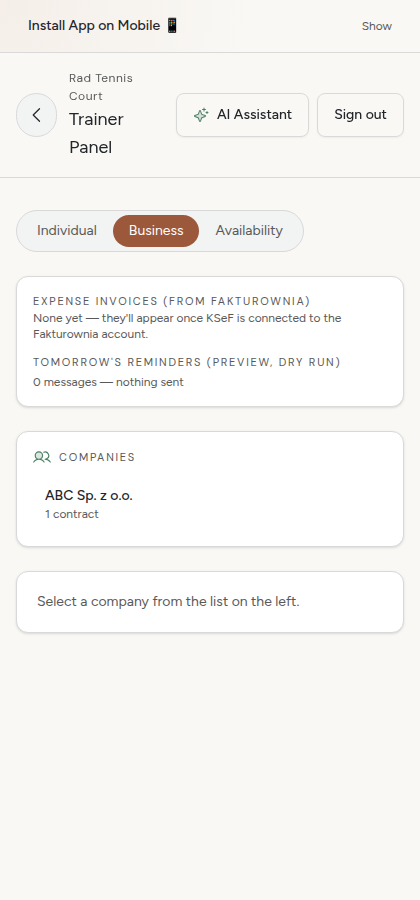
Confirm the time slot at the club
Before the contract goes out for signing, confirm that you actually have the hour booked at the club.
Confirm the time slot is booked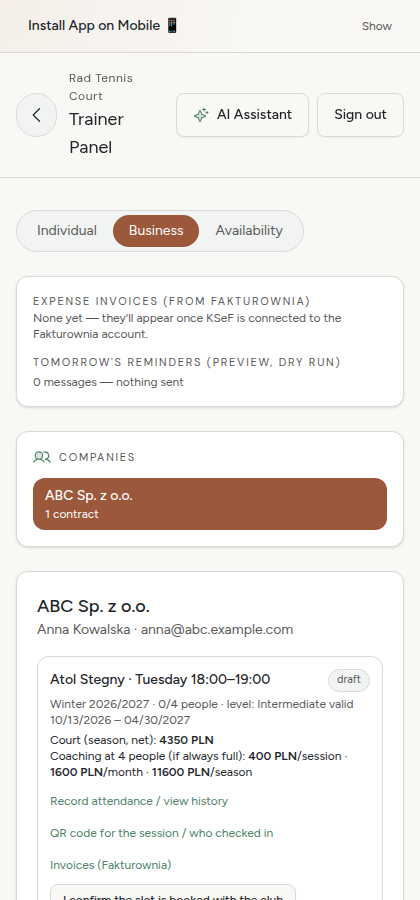
Send the contract for signing
One click — Firma.dev sends the contract to the company first, then to you. You don't print anything.
Send for signing (Firma.dev)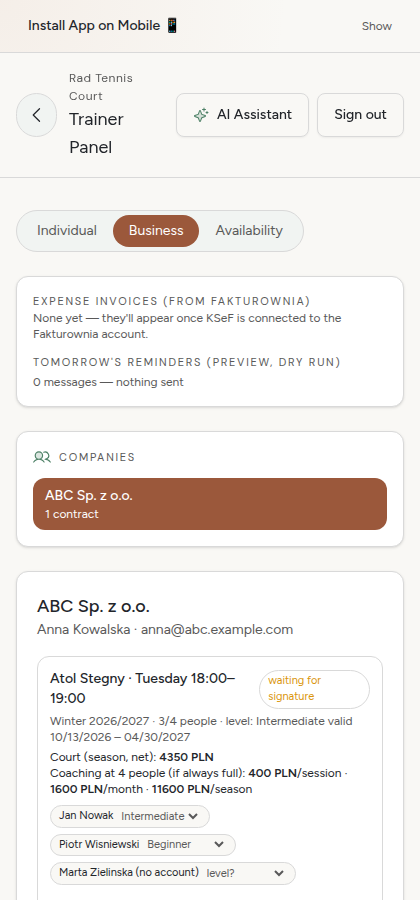
Check the signing status
After sending you can see whether the company and you have already signed — the system detects it automatically, you don't have to do anything manually (unless you want to mark it as signed by hand).
Status: awaiting signature / signed
Invoices
The court invoice is issued once the contract is activated. Your coaching invoice — every month, automatically, based on attendance from the last sessions.
Invoices (Fakturownia)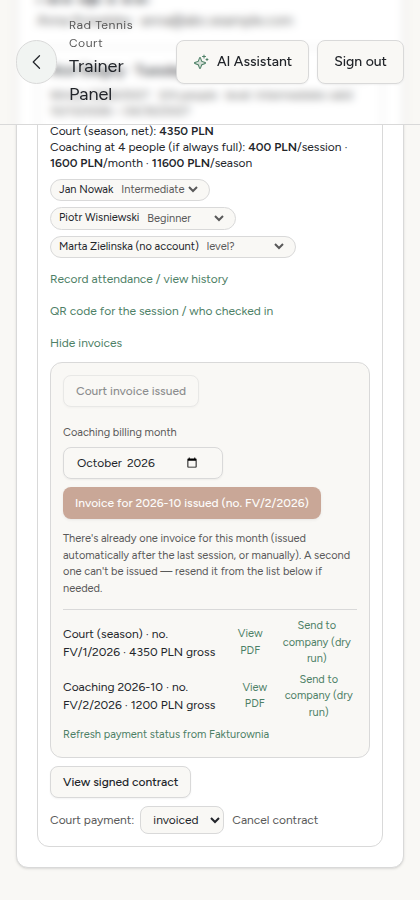
QR code and attendance
At the session, show employees this QR code to scan — or record attendance manually from the list.
Session QR code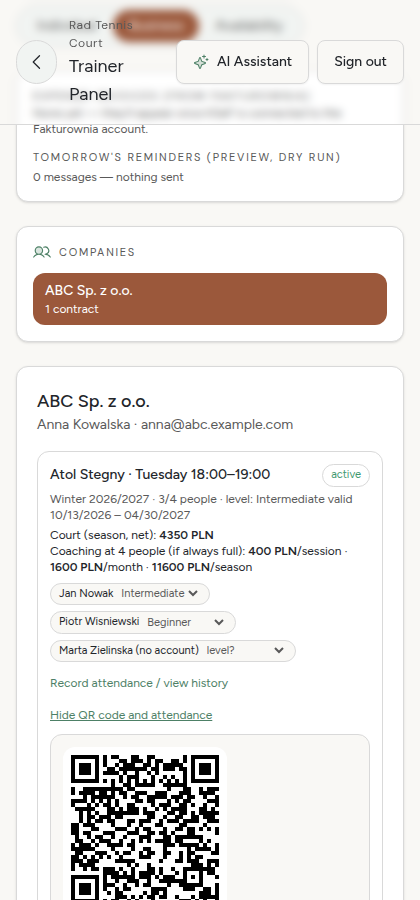
Rad Tennis Court
It all happens in one panel — no switching between apps.