Rad Tennis Court · A sports benefit for employees
How to get started — a guide for Companies
From registering an account to your first invoice: twelve steps, exactly what you'll see on screen.
Registration
Go to radtenniscourt.com/firma and register your company — name, tax ID, contact details.
Expand the contract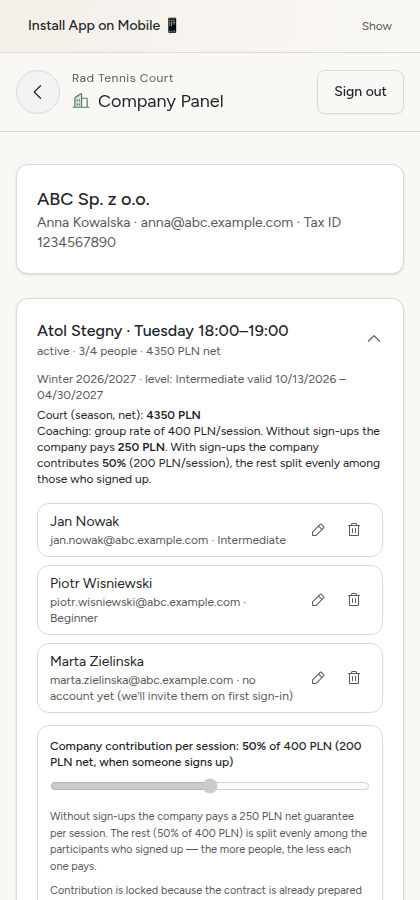
Price simulator
Before you submit an offer, use the slider to check how much the company pays and how much each employee pays at different funding levels.
Drag the slider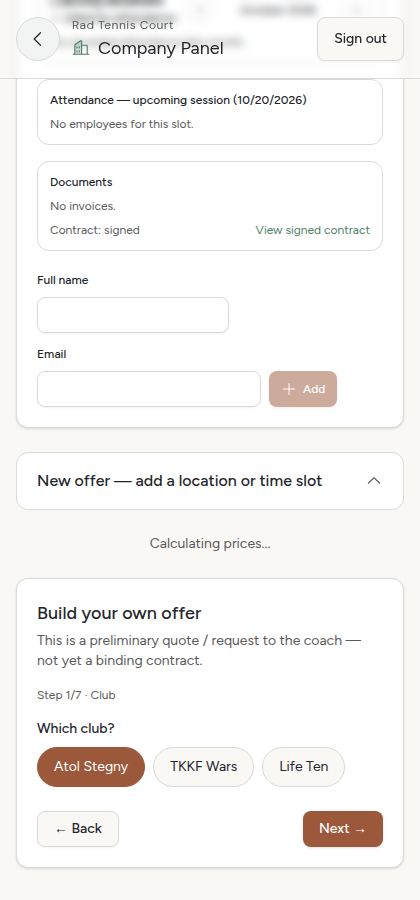
Offer wizard
Choose the club, day, hours, and number of people — step by step, one field per screen.
Next
Price preview
Once all fields are filled in you see the price live — for the whole period and per session.
Add to cart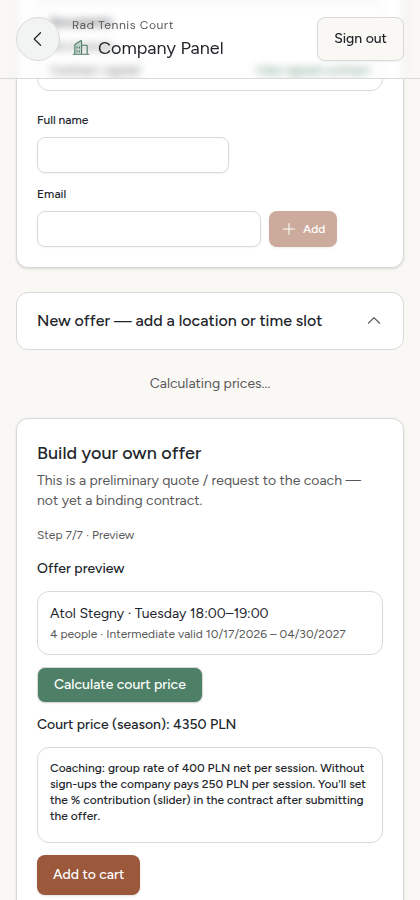
Send the offer
The offer goes into your cart. From there you send it to the coach — this isn't a binding contract yet, just a request.
Send 1 offer to the coach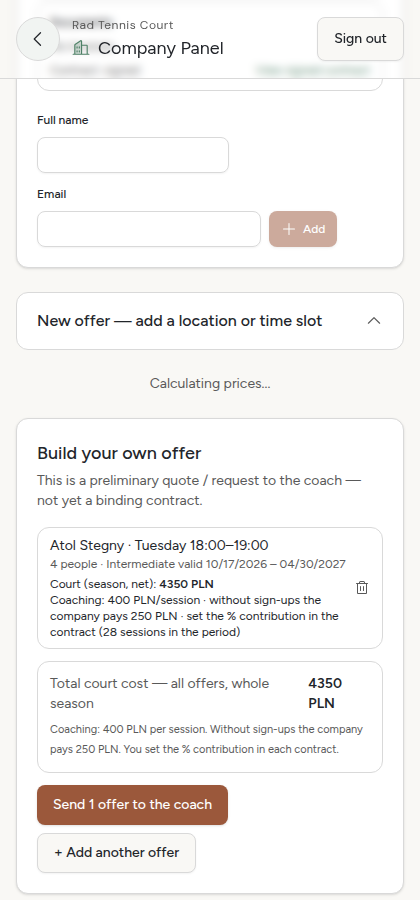
The coach confirms the time slot
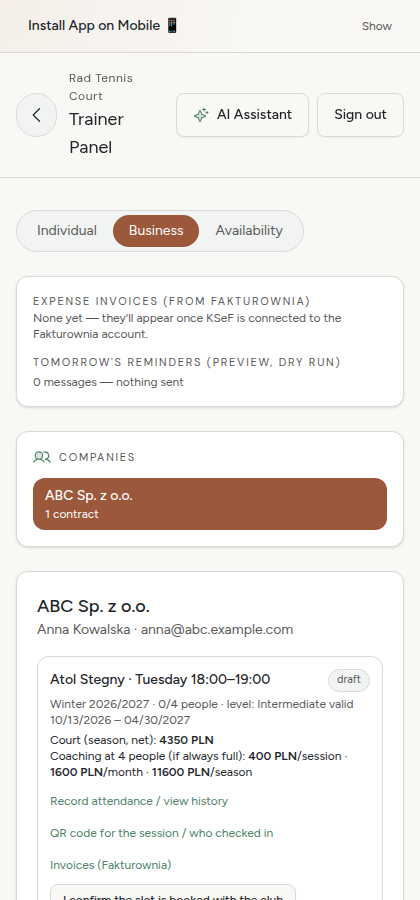
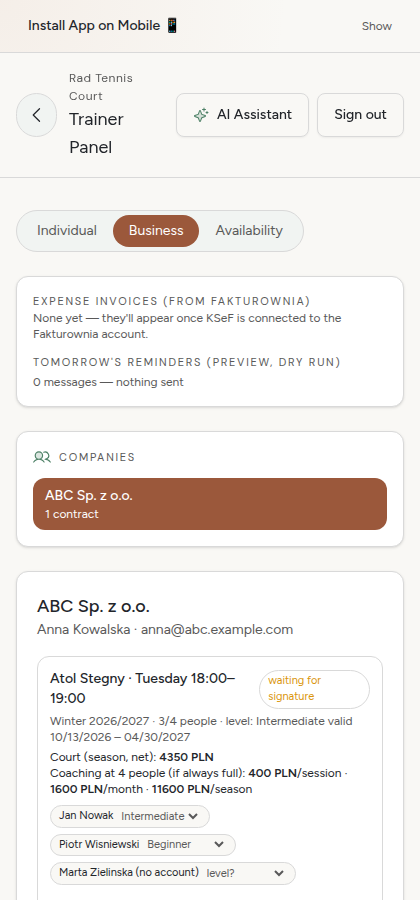
This already happens without you — the coach books the time slot at the club and sends the contract for signing. See the "What happens on our side" section below.
See below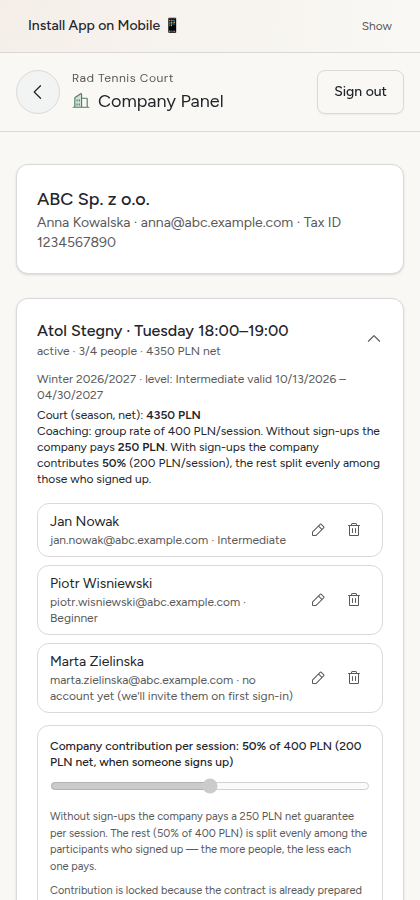
Signing the contract
You'll get an email from [email protected] with a link to sign electronically — one click, no printing.
Sign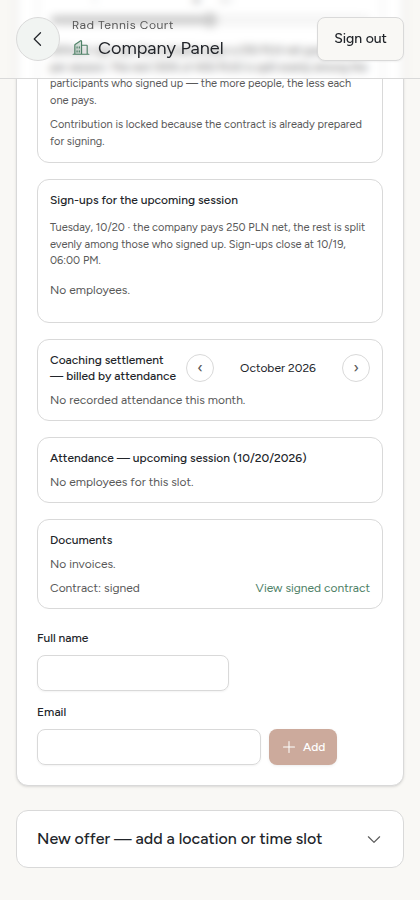
Set the funding %
In the contract you set what percentage of the coaching fee the company covers — the rest is split between the employees who sign up. The slider locks once the contract is signed.
Drag the slider
Add employees
First name, last name, email — the employee gets an invitation and creates their own account. You can add them one at a time, at any point.
+ Add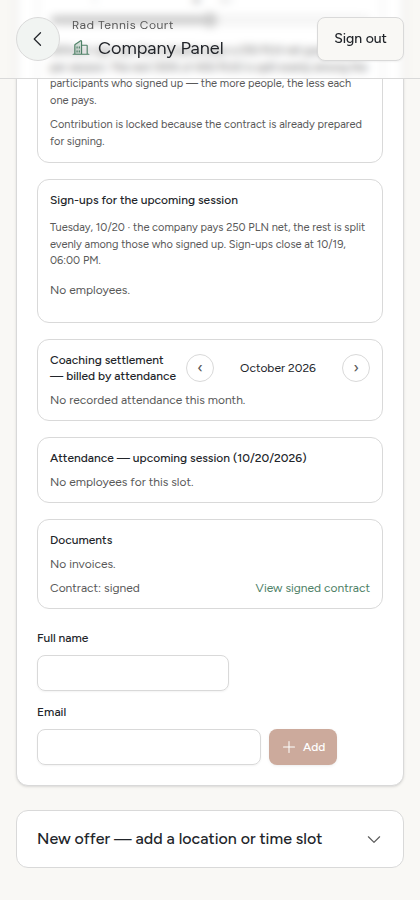
Employee list
See who already has an account and who doesn't, and remove or replace anyone at any time.
Account status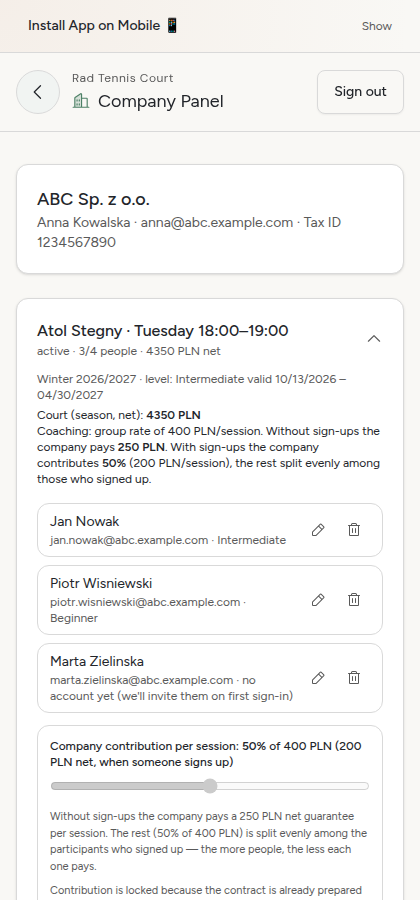
Invoices
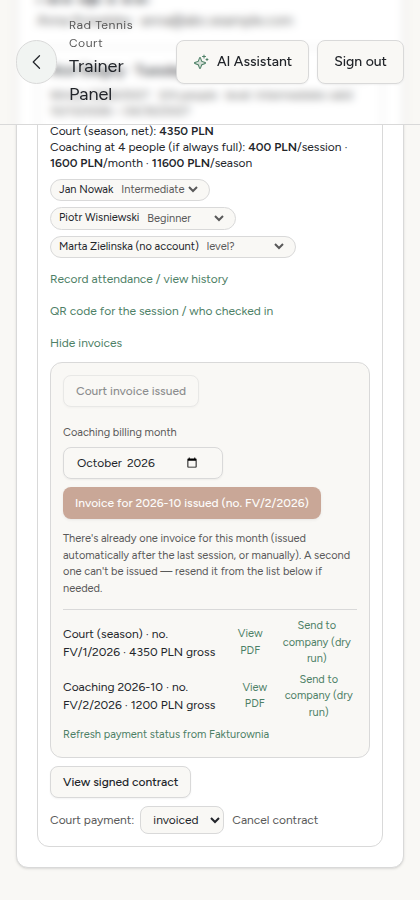
The court invoice arrives right away, upfront for the whole period. The coaching invoice — every month, automatically, only for sessions that actually took place.
PDF preview
Who signed up
Before each session you can see which employees confirmed "I'll be there" — and whether they've already paid their share.
Sign-up status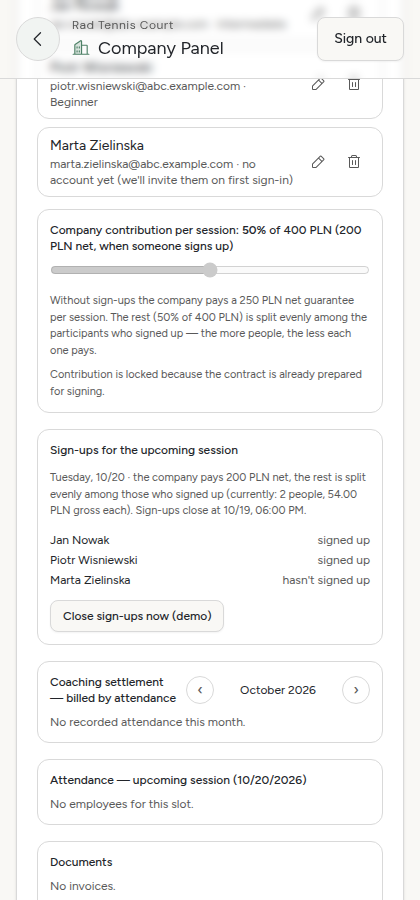
Happens automatically
What the coach does, without your involvement
After you send the offer, the coach takes care of the rest — you only see the result (the signed contract, the invoice). For the full picture, here's what it looks like on her side:
Rad Tennis Court
Questions? Message Weronika directly — contact details in the footer of radtenniscourt.com.